Unix commands
samuel.ortion@universite-paris-saclay.fr
2026-09
Created: 2026-09-18 Fri 11:53
Table of Contents
- The Unix file tree
- Managing files and folders
- Compress and decompress files
- Wildcards
- Curly braces combo
- Connecting to a remote machine with SSH
- Transfer file with
scp - Search a pattern in a file with
grep - The regular expressions
- Find a file in the file tree with
find - Displaying the content of a file
- Manipulating the content of a file
- An overview of the main file manipulation command
- Environment variables
- An executable scripts and the shebang
The Unix file tree
In Unix, everything is a file.
File is organized in a file tree.
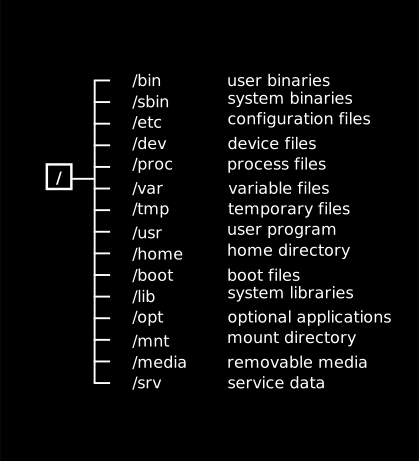
The tree is anchored in the root (/).
ref. https://www.linuxfoundation.org/blog/blog/classic-sysadmin-the-linux-filesystem-explained
An overview of the main directory of a Linux system
Managing files and folders
touch
To create an empty file, you can use the command touch:
touch hello_Unix.txt
mkdir
To create a folder, use the command mkdir (“make directory”):
mkdir unix2026
mv
To move a file to another location, use the command mv (“move”):
mv hello_Unix.txt ./unix2026/hello_Unix.txt
ls
Let’s see what we have in our current folder, with the command ls (list):
ls
basic_commands.html
basic_commands.org
media
unix2026
[...]
For more details on the files, we can use:
ls -l
total 64
-rw-r--r--. 1 sortion sortion 13213 Sep 13 10:52 basic_commands.html
-rw-r--r--. 1 sortion sortion  8122 Sep 13 10:53 basic_commands.org
-rw-r--r--. 1 sortion sortion   335 Sep 13 09:42 presentation.css
drwxr-xr-x. 1 sortion sortion    28 Sep  7 16:42 unix2026
[...]
To show all files, including “hidden” dot-files: ls -la
ls -la
total 64
drwxr-xr-x. 1 sortion sortion   254 Sep 13 10:52 .
drwxr-xr-x. 1 sortion sortion    16 Sep  3 09:20 ..
-rw-r--r--. 1 sortion sortion 13284 Sep 13 10:54 basic_commands.html
-rw-r--r--. 1 sortion sortion  7455 Sep 13 10:54 basic_commands.org
drwxr-xr-x. 1 sortion sortion   418 Sep 13 10:40 media
-rw-r--r--. 1 sortion sortion   335 Sep 13 09:42 presentation.css
drwxr-xr-x. 1 sortion sortion    28 Sep  7 16:42 unix2026
[...]
pwd
If you feel lost in the file tree, use pwd (“print working directory”); it will show the absolute path from the Unix file system root to the current directory:
pwd
/home/sortion/Nextcloud/Documents/enseignement/2026-2027/mssb/mssb-computer-refresher/unix/course
Absolute vs relative path
Absolute path:
/home/sortion/Nextcloud/Documents/enseignement/2026-2027/mssb/mssb-computer-refresher/unix/course/unix2026/hello_Unix.txt
Relative path:
./unix2026/hello_Unix.txt
The dot symbol “.” represents the current directory. To access a parent directory, we can use a double dot “..”:
What relative path would you use to access the unix/ folder in mssb-computer-refresher course folder, from the current directory shown above?
cp
To copy a file, we use the command cp, e.g.
cp file.txt copy.txt
ln
To create a symbolic link (shortcut) between two files:
ln -s README.txt ~/Desktop/README.txt
File permissions
On an Unix system, permissions are granted to specific users:
For a file:
- read (r)
- write (w)
- execute (x) (e.g, a script)
For a directory:
- read \(\to\) list the content
- write \(\to\) create and delete files
- execute \(\to\) enter the directory (
cd)
For user , group , all users
- rwx rwx rwx
- all users can read, write and execute this file
- rw- r-- ---
- the owner user can read and write the file, the group can only read the file
- rwx --- ---
- only the user can read, write and execute the file
See current file permission
Use ls -l to see file permission.
Change the file owner user and group
A file is owned by a user and a group:
To change the owner of a file, use:
chown user:group file
To modify the permission on a file, use chmod
# Grant group users read permission on FILE
chmod g+r FILE
# Grant owner user execution permission on FILE
chmod +x FILE
Compress and decompress files
Compression: to reduce the volume of the data using a compression algorithm
Archiving: collect multiple data fiiles together for easier storage and portability
gzip / gunzip
The compression algorithm is Lempel-Ziv coding (LZ77).
gzip audio.wav
By default gzip remove the original file, use option -k to keep the uncompressed file. The same goes for gunzip, to decompress the audio file.
gunzip audio.wav.gz
For zip archive
zip archive.zip file1.wav file2.txt etc.
unzip archive.zip
tar - archiving utility
Archiving
tar cf archive.tar file1.wav file2.txt
Create a gzipped archive of a directory
tar czf archive.tar.gz --directory directory/ .
Extract files from a gzipped tar archive:
tar xvzf archive.tar.gz
Wildcards
$ ls
audio1.wav audio2.wav file1.txt readme.txt
$ ls *.txt
file1.txt readme.txt
$ ls a*
audio1.wav audio2.wav
$ ls *1*
audio1.wav file1.txt
$ rm *
$ ls
$ █
Wildcards allows to perform the same operation on multiple files that matches the pattern, for example:
*: all files in current folderx*: all files that start with ‘x’*.gz: all files that ends with ‘gz’*a*: all files that contains an ‘a’dir/*: all files in folder ‘dir’*/*: all files in all folders (first level)*/**/*: any file in inner folder
Curly braces combo
echo number{1,2}
number1 number2
echo {a..z}
a b c d e f g h i j k l m n o p q r s t u v w x y z
combo of combo!
echo exercise{1,2}/qu{a..b}
exercise1/qua exercise1/qub exercise2/qua exercise2/qub
A lot more! ref. https://www.linux.com/topic/desktop/all-about-curly-braces-bash/
Connecting to a remote machine with SSH
To connect to a remove server, we use SSH (Secure Shell), which allows to open a shell on the remote machine through a secure internet connection.
For instance, to connect to the machine with the address server.example.com with the Unix username jane, we would use the following command:
ssh jane@server.example.com
Transfer file with scp
We can use the SSH protocol to transfer files to a remote server, with scp:
Similarly to the local cp usage, we run:
scp file.txt jane@server.example.com:Documents/file.txt
Let’s dissect this command: The first argument set the path of the file we want to copy to the remote server; the second argument defines the remote location where we want the file to be copied.
The format should be familiar: it looks like the ssh address format, with the destination path in the remote server file tree in addition: <unix username>@<machine address>:<file location>.
The machine address can be a hostname, such as a domain name, or a IP address.
We can also copy file from a remote location to our computer. To do so, we put the remote address in first argument position, and the local path as second argument:
scp jane@server.example.com:Documents/file.txt file.txt
Search a pattern in a file with grep
The command grep allows to search a pattern in a file using regular expression:
grep PATTERN FILE
The regular expressions
In a shell, you already encountered the glob pattern * which means “any string”. This is the level 0 of regular expression.
Regular expression are very powerful.
We can write a word in the regular expression. For instance banana is a regular expression matching only the word banana.
| ^\(x\) | the pattern starts with \(x\) |
| \(x\)$ | ends with \(x\) |
| \(x\)? | \(x\) can be there or not |
| \(x\)+ | \(x\) repeated at least once |
| \(x\)* | \(x\) repeated 0, once or any number of times |
| [\(xy\)] | the letter can be \(x\) or \(y\) |
| [a-z] | a small letter of the latin alphabet |
| [a-zA-Z] | either a small letter or a capital letter of the latin alphabet |
| [0-9] | any digit |
\d |
any digit |
\w |
any word |
| [^\(x\)] | not the character \(x\) |
| . | any character |
| .+ | any sequence of character |
| (\(w\))+ | a repetition of the pattern \(w\), the parenthesis forms a group in the regex |
Regex in grep
To use all regex power in grep, use the option grep -E
Find a file in the file tree with find
The command find is a file search tool.
To search a file named ecoli.fasta in the folder data, we can use the following command:
mkdir -p ./data
touch ./data/ecoli.fasta
find ./data/ -name ecoli.fasta
The find command will report all location where a file with such a name is found.
We can do a lot of things with this command.
For instance, if we want to match file with a regular expression instead of the exact file name, we can use the -regex option instead of -name:
# Create the folder and empty test files
mkdir -p data
touch data/{test.fa,test.fna,test.fsa,test.fasta}
# All fasta files with extension fa, fna or fsa
find ./data -regex '.*.f[ns]?a'
Displaying the content of a file
head and tails
$ head -3 data/ref.fasta
>chrM
ATGCGTCGATGCATCGATGGCTATGGCAGCTTAGCGATGCAT
ACTGACGATGGCATCGAGCAGCTATCGACTGACTATCGATCA
$ tail -1 data/ref.fasta
ATGCGGATCTAGCTGAGGCTTCAGCATTGCAGCTAGGGCATC
wc
wc: “word count”
wc introduction.org
331 1346 9407 introduction.org
number of lines, word count and characters
to show only the number of lines:
wc -l introduction.org
331 introduction.org
cat
read the content of the file and redirects it to stdout.
The subtleties between Windows and Unix plain text files
line breaks on DOS / Windows plain text file are encoded with the special characters \r\n wheras in Unix plain text files, it is simply \n.
To check for special characters in a file, we can use the cat options cat -vet.
cat -vet ~/Downloads/test_windows.txt
K00001^IE1.1.1.1, adh; alcohol dehydrogenase [EC:1.1.1.1]^M$
K00002^IAKR1A1, adh; alcohol dehydrogenase (NADP+) [EC:1.1.1.2]^M$
K00003^Ihom; homoserine dehydrogenase [EC:1.1.1.3]^M$
K00004^IBDH, butB; (R,R)-butanediol dehydrogenase / meso-butanediol dehydrogenase / diacetyl reductase [EC:1.1.1.4 1.1.1.- 1.1.1.303]^M$
K00005^IgldA; glycerol dehydrogenase [EC:1.1.1.6]^M$
K00006^IGPD1; glycerol-3-phosphate dehydrogenase (NAD+) [EC:1.1.1.8]^M$
K00007^IdalD; D-arabinitol 4-dehydrogenase [EC:1.1.1.11]^M$
K00008^ISORD, gutB; L-iditol 2-dehydrogenase [EC:1.1.1.14]^M$
K00009^ImtlD; mannitol-1-phosphate 5-dehydrogenase [EC:1.1.1.17]^M$
K00010^IiolG; myo-inositol 2-dehydrogenase / D-chiro-inositol 1-dehydrogenase [EC:1.1.1.18 1.1.1.369]^M$
^M$
Beware of the carriage return \r on Unix systems, when the files comes from Windows, some Unix program might have trouble with these.
Some commonly used special characters, and their escaped sequence
| \n | line break |
| \r | carriage return |
| \t | tabulation |
less / more
to read the content of the file
tr - “translate”
change a character in a stream:
echo "csh" | tr "c" "z"
Manipulating the content of a file
- standard input, standard output, standard error
- unix pipe and pipeline
the example file
cat data/ref.fa
>chrM
ATGCGTCGATGCATCGATGGCTATGGCAGCTTAGCGATGCAT
ACTGACGATGGCATCGAGCAGCTATCGACTGACTATCGATCA
>chrX
ATGCGGATCTAGCTGAGGCTTCAGCATTGCAGCTAGGGCATC
the unix pipe
tail -n +2 data/ref.fa | grep -P "chr[MXY]" \
    | cut -c5- | sort -k1 | uniq \
    | awk '{print $1 "\t" $4 }'
X
How does this work?
The standard output of a command is redirected to the standard input of the next command.
tail -n +2 data/ref.fa | grep -P "chr[MXY]" | cut -c5- | sort -k1 | uniq | awk '{print $1 "\t" $4 }'
tail -n +2 data/ref.fa  # read data/ref.fa and skip the first line
    | grep -P "chr[MXY]" # match only the lines containing chrM, chrX or chrY
    | cut -c5- # extract the characters from the 5th characters to the end of the line
    | sort -k1 # sort the file on the first column
    | uniq  # remove duplicated lines
    | awk '{ print $1 "\t" $4 }' # display the 1st and 4th columns seperated by a tabulation
Standard input, standard output and standard error
program1

by default the stdout and stderr outputs are shown in the terminal.
The pipe
program1 | program2

the pipe redirects the standard output of program1 to the standard input of program2
The special files for standard stream
Recall that everything is a file on an unix system: so are standard input and standard outputs.
- /dev/stdin
- /dev/stdout
- /dev/stderr
An overview of the main file manipulation command
sort
to sort a file on first column, (-k for “key”) by numeric order
sort -k1 -n file.txt
to sort a file by lexicographic order on column 2
sort -k 2 -d file.txt
join
To join two files that have a column in common:
join -1 1 -2 4 file1.txt file2.txt
both file must be sorted on the selected column.
cut
extract the columns 2 and 5 from the file from a TSV file:
cut -d$'\t' -f2,5 file.tsv
get all columns starting from the 5th column:
cut -f5- file.txt
extract the first 5 characters of the file:
cut -c1-5 file.txt
comm
compare two sorted file:
- keep only the shared lines
comm -12 file1.txt file2.txt
meaning of the 1, 2, 3 options:
-1: remove the lines specific to the first file-2: remove the lines specific to the second file-3: remove shared lines
How to get only the lines that are specific to file1.txt?
paste
cat ./data/file1.txt
1 2
cat ./data/file2.txt
3
paste ./data/file1.txt ./data/file2.txt
1 2 3
uniq
remove duplicates in a sorted files
cat ./data/file_duplicates.txt
a
b
a
uniq <(sort ./data/file_duplicates.txt)
with uniq -c we can count the number of occurences.
Environment variables
We can define variable in the shell with
my_course=mSSB
echo $my_course
mSSB
There are a lot of pre-defined variables in the Shell, initialized when the users opens its session, for instance:
echo $HOME
/home/sortion
to get a list of environment variable, we can use env
env
The PATH environment variable
The PATH variable list the directory where the shell will search for the command binaries and scripts:
echo $PATH
/home/sortion/.local/bin:/home/sortion/bin:/usr/share/Modules/bin:/usr/local/sbin:/usr/local/bin:/usr/bin
It is a list of path separated by a colon ’:’.
To add a path to the PATH variable, use:
export PATH=/my/new/path:$PATH
don’t forget “:$PATH”, otherwise the PATH variable will contain only /my/new/path and you will no longer be able to use regular commands in the shell.
An executable scripts and the shebang
To create bash script we create a plain text file with bash commands.
To make the script executable, use chmod +x script.sh and add a shebang in the first line, with the path to the interpreter of the script.
#!/bin/bash
We can also use the following shebang to use the default bash interpreter available in the current shell environment:
#!/usr/bin/env bash
For Python script, the same logic applies:
#!/usr/bin/env python3
Then, to execute the script:
./script.sh
or if the script.sh file is in a folder in PATH, simply
script.sh